Check that Sync to AirBill is on for the right account, and that the connection hasn’t expired.
Manage your connections
Profile → Connections shows everything linked to AirBill: your email connections at the top, your bank accounts below.
Go to Profile → Connections. The screen has two sections, Email and Banking, and flags any connection that needs attention.
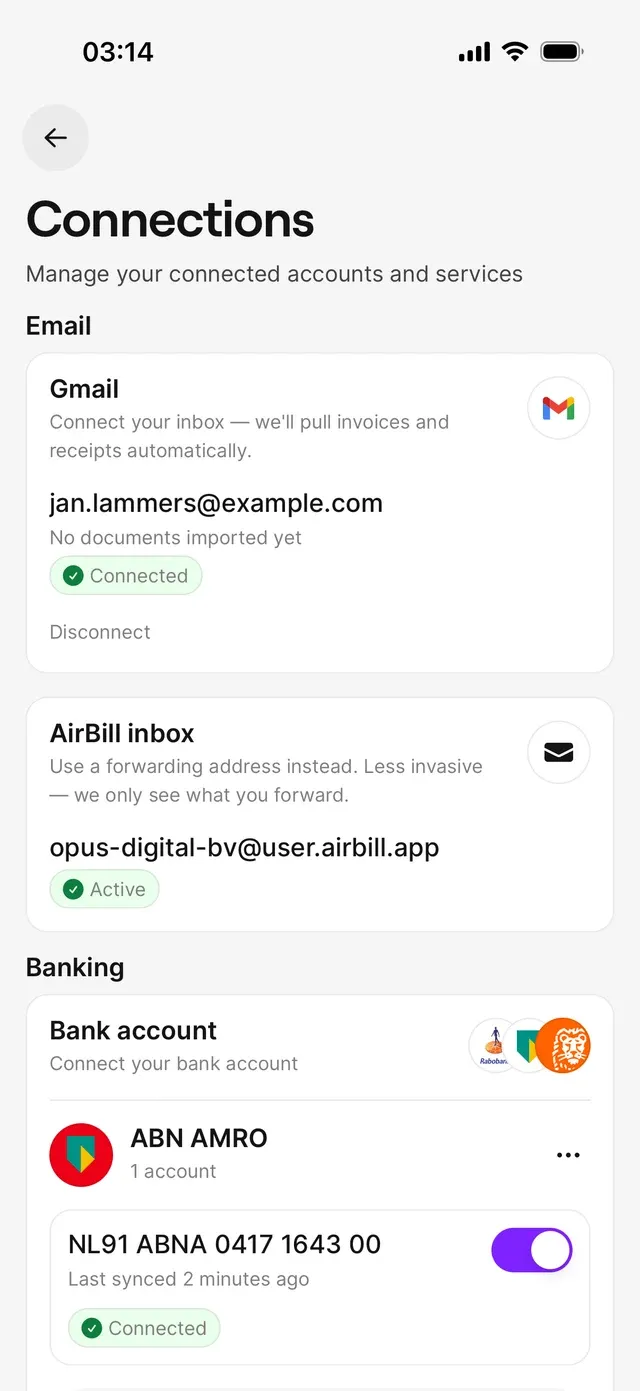
AirBill inbox is your own forwarding address, like yourcompany@user.airbill.app. Invoices and receipts you forward to it are processed automatically, and it’s also the sender address when you send invoices through AirBill. Active means it’s ready; Set up means you still have to choose and activate an address — see Set up and use your AirBill email address.
Gmail only appears if your inbox was connected earlier. New businesses don’t get this option — see The Gmail connection.
Banking
Each bank gets a card with its accounts:
- Sync to AirBill controls per account whether transactions come in. Accounts switched off sit under Show inactive.
- Under each account you see when it last synced, with a Connected label when all is well.
- The ⋯ next to the bank lets you sync now, reconnect, or disconnect it.
- No bank yet, or adding a second one? Tap Connect or Add bank account.
Connecting, reconnecting, and disconnecting are covered in Connect or reconnect your bank.
Common problems
No new transactions are coming in
Connection expired
Tap Reconnect bank and run through your bank’s consent again. Everything already in AirBill stays put.
Connection disabled
This connection can’t be renewed. Remove the bank and add it again via Add bank account.
Related articles
Can't find what you're looking for? Send us a message and we'll help you personally.
Contact support