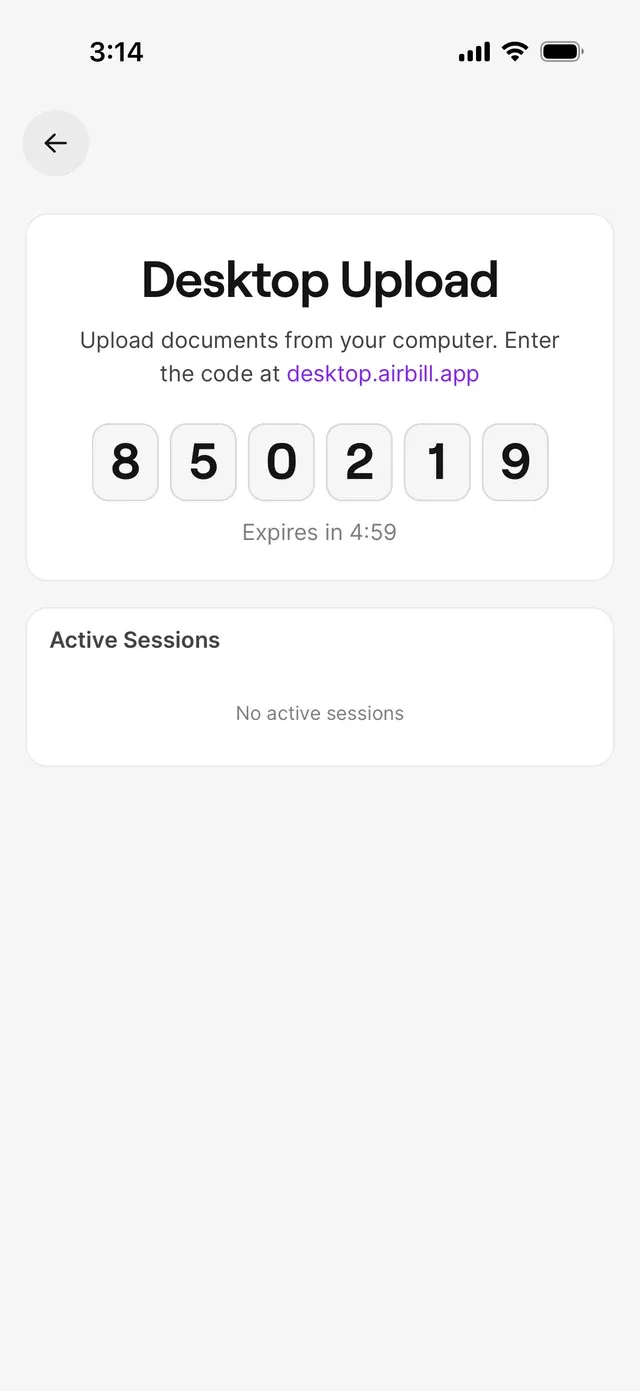
Go to Profile → Desktop Upload and tap Generate Code. The screen shows a code and the web address to open on your computer.
No articles found
Try a different word, browse the topics, or contact support.
Search works on the published site. In development, browse the topics below.
Pair your computer's browser with AirBill using a short code, then drop receipts and invoices in from your desktop — and disconnect it again whenever you want.
Desktop Upload sends documents into AirBill from your computer’s browser — a PDF invoice in your downloads, a scan from your printer. It’s a web page, not a program you install: you pair it once with a short code, and your phone stays in charge.
Go to Profile → Desktop Upload and tap Generate Code. The screen shows a code and the web address to open on your computer.
Type the address shown on the screen into your browser — by default desktop.airbill.app. Always use the address the app displays.
Type the code into the page. The phone counts down under Expires in; if it runs out, tap Generate Code again for a new one.
Your phone asks Desktop Pairing Request, naming the browser and system that asked — “Chrome on macOS”, for example. Tap Allow if you recognise it, Deny if you don’t.
Once approved, the page can send documents into AirBill; they’re processed like any other upload — see Add a receipt or invoice.
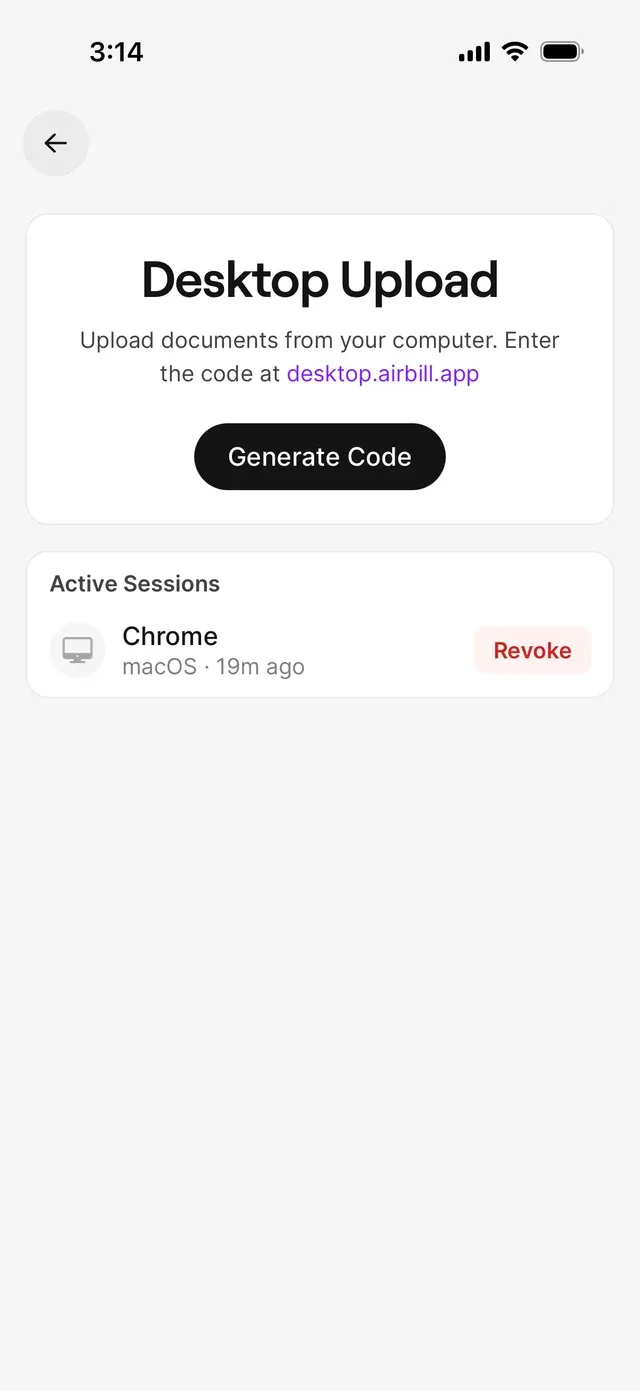
The same screen lists your connected browsers with the system they run on and how long ago they connected, or No active sessions when there are none. Revoke next to a session disconnects that browser after a confirmation; pairing again from scratch is what restores it.
Codes expire on a countdown. Tap Generate Code again and enter the new one.
Check the code and the address, and keep the Desktop Upload screen open while you pair.
Tap Revoke on that session. The computer loses access; nothing else about your account changes.
Can't find what you're looking for? Send us a message and we'll help you personally.
Contact supportAirBill AI assistant