- Paying from a bank account connected to AirBill lets AirBill recognise the payment and complete the declaration on its own. That needs a close match: the Belastingdienst as the recipient, the same payment reference, and the same amount.
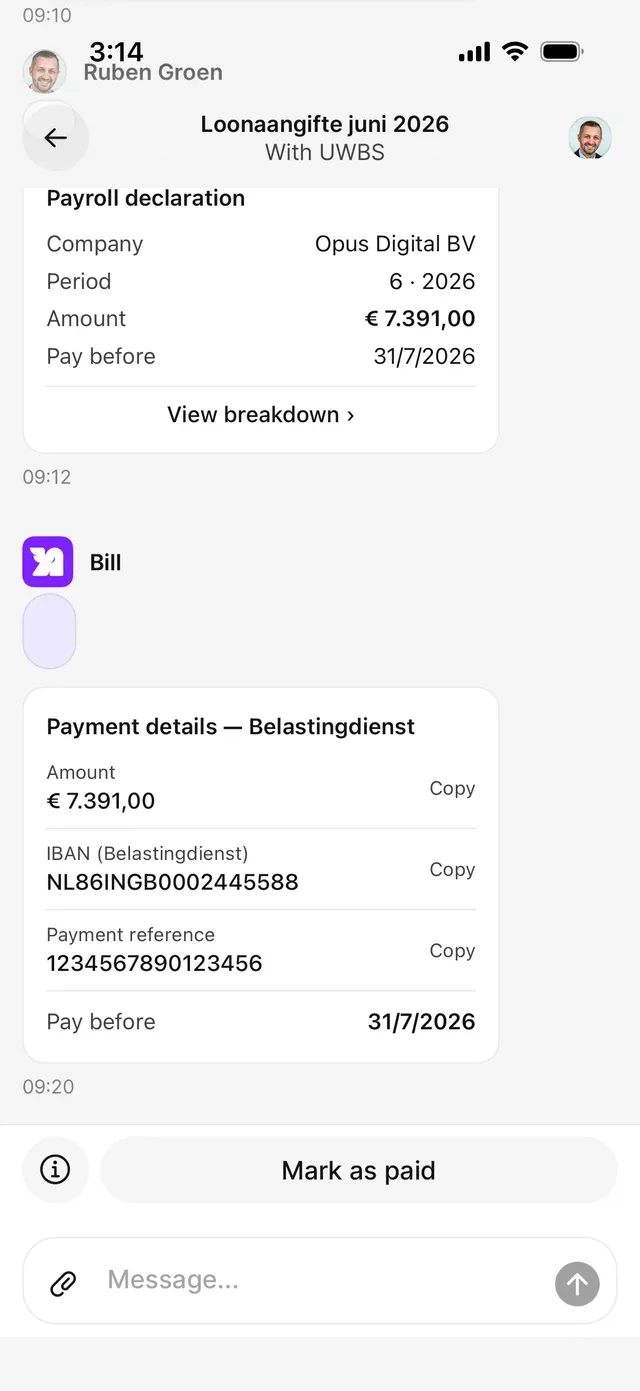
- Paid from an account AirBill doesn’t sync? Use Mark as paid on the conversation to close it yourself.
Review, approve, and pay a payroll declaration
Your accountant sends the payroll declaration to your Inbox: check the breakdown, approve it or request changes, and pay the Belastingdienst from your own bank.
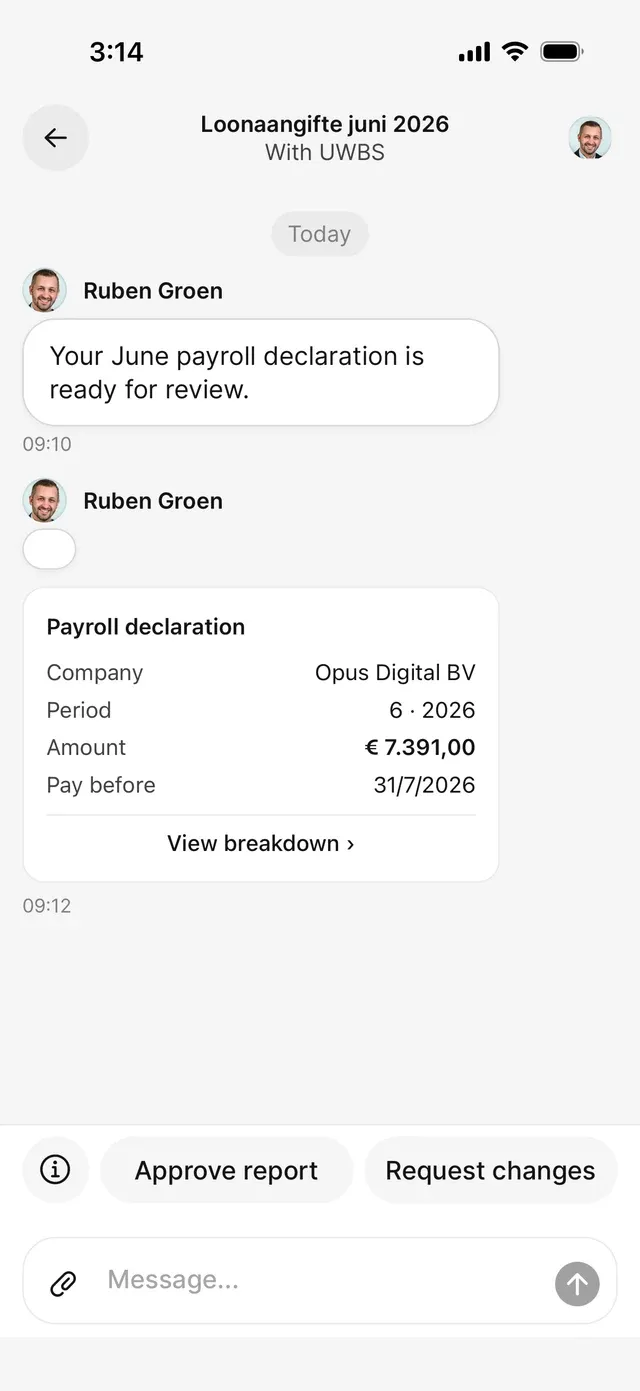
When your accountant has prepared your payroll declaration, it appears in your Inbox as a conversation with a Payroll declaration card showing the company, period, amount, and the date to pay before. A correction to an earlier period is labelled Correction.
Separate two things from the start: you approve the declaration and your accountant files it, and the payment to the Belastingdienst is a bank transfer you make yourself. AirBill doesn’t transfer the payroll tax for you.
Checking the breakdown
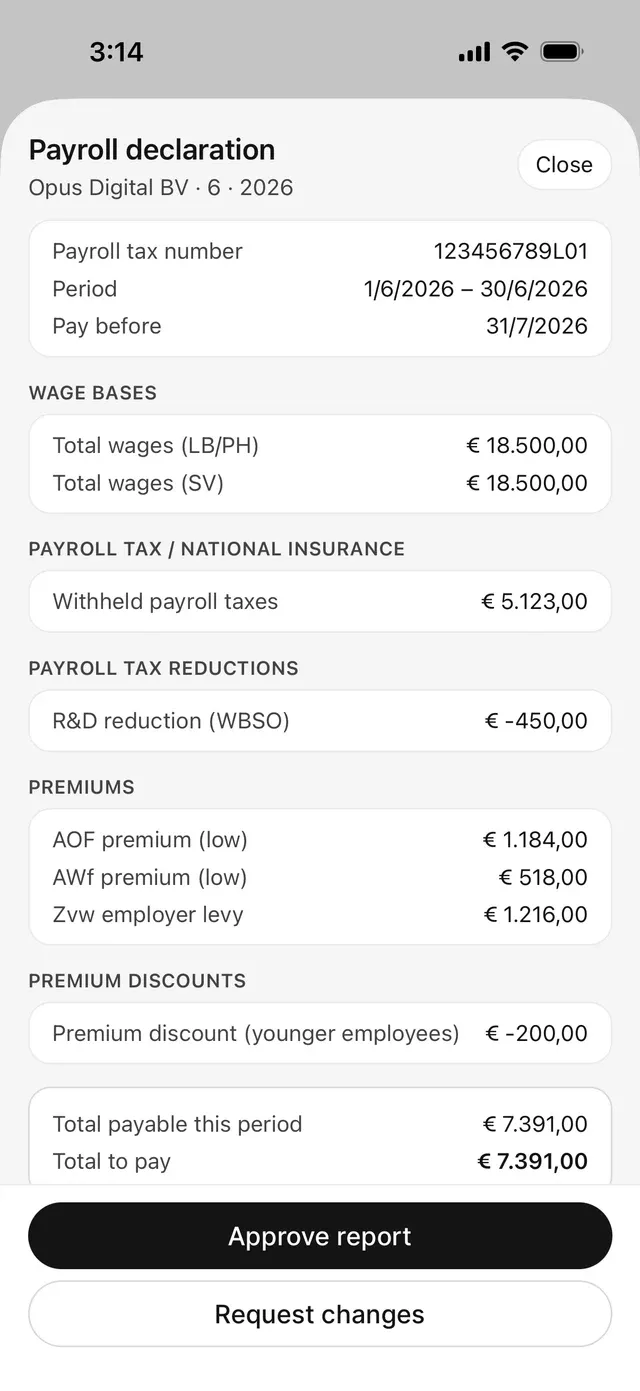
View breakdown opens the full specification: your payroll tax number, the period, and the amounts grouped into wage bases, payroll tax and national insurance, reductions, premiums, and premium discounts — ending with the total payable for the period, any corrections to previous periods, and the total to pay. Files your accountant attached are listed under Documents in the same sheet.
Approving or requesting changes
Check the figures against what you expect. If something’s off, tap Request changes and describe what needs correcting; your accountant adjusts it and the updated declaration arrives in the same conversation. If it looks right, tap Approve report and confirm.
Paying the Belastingdienst
Once it’s been filed, a Payment details — Belastingdienst card appears with the amount, the IBAN, the payment reference, and the date to pay before. Tap any of those rows to copy the value — the row confirms with Copied! — and paste it into your banking app. Use the payment reference exactly as shown: it’s how the Belastingdienst matches your payment to this declaration.
What happens next
Common problems
You paid, but the declaration still shows as awaiting payment
Recognition needs recipient, reference, and amount to line up, through a connected bank account. If anything differs — another account, an edited reference, a partial amount — use Mark as paid instead.
You spotted a mistake after approving
Message your accountant in the same conversation. A correction comes back as a new declaration, labelled Correction.
You can't find the payment details
They appear only once the declaration has been filed.
Related articles
Can't find what you're looking for? Send us a message and we'll help you personally.
Contact support