A filter or search is probably active — tap the chips above the list or choose Clear all.
Your invoice list and statuses
See at a glance what's paid, sent, or overdue, filter your invoices, and understand exactly what every status means.
Tap Invoices in the bottom bar. Three tiles at the top show totals including VAT: Paid, Sent, and Overdue. They double as filters — tap one to narrow the list, tap again to clear. (Sent covers everything still outstanding, so overdue invoices are included there too.)
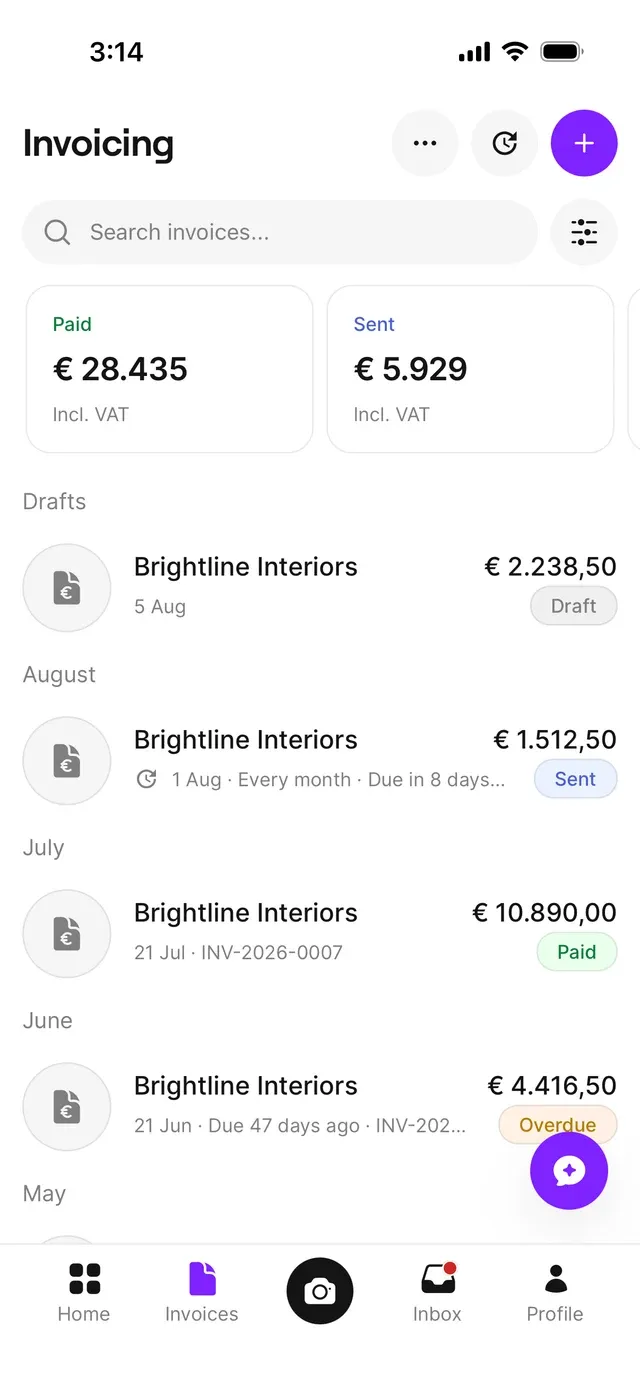
Drafts always sit on top, followed by your invoices grouped by month. Each row shows the customer, the amount, the date with due information, and the invoice number. Invoices generated by a recurring schedule carry a small clock icon.
Search finds invoices by customer or number. The filter button adds Status (Draft, Sent, Paid, Overdue, Credited, Credit note) and Date range (last 7 days, this month, last month, this quarter). Active filters appear as removable chips.
What each status means
- Draft — not issued: no invoice number, nothing sent. Free to edit, duplicate, or delete.
- Sent — issued, with its number, and outstanding with your customer.
- Paid — the payment is registered, automatically or via Mark as → Paid.
- Overdue — still outstanding past its due date.
- Credited — cancelled out with a credit note.
- Credit note — the credit note itself, with a negative amount.
A draft is still yours to change; an issued invoice is final. Issued invoices can’t be edited or deleted — if something’s wrong, you credit it and send a new one.
Also on this screen
+ starts a new invoice, the clock opens your recurring schedules, and ⋯ holds Customers and Invoice settings.
Common problems
An invoice seems to be missing
An invoice shows Overdue although the customer paid
Payments outside your connected account aren’t recognized automatically. Open the invoice and choose Mark as → Paid.
Related articles
Can't find what you're looking for? Send us a message and we'll help you personally.
Contact support