Check the status: only an active schedule creates invoices. A draft needs to be activated first; a paused schedule needs to be resumed.
Recurring schedules and generated invoices
A recurring schedule creates and sends your repeat invoices automatically. Here's how to read your schedules, their statuses, and the invoices they produce.
What a recurring schedule is
A recurring invoice schedule is a template with a rhythm: the same customer, the same line items, and a frequency such as monthly on the 1st. While the schedule is active, AirBill creates the invoice on every planned date and sends it with your email message. Nothing left for you to do.
You open your schedules via the clock icon at the top right of the invoice list.
The schedule list
The list groups schedules by status: Drafts, Active, Paused, Cancelled, and Completed. Per schedule you see the customer, the invoice amount including VAT, and — for active schedules — when the next invoice goes out. Search by customer and filter by status or frequency at the top.
A schedule in detail
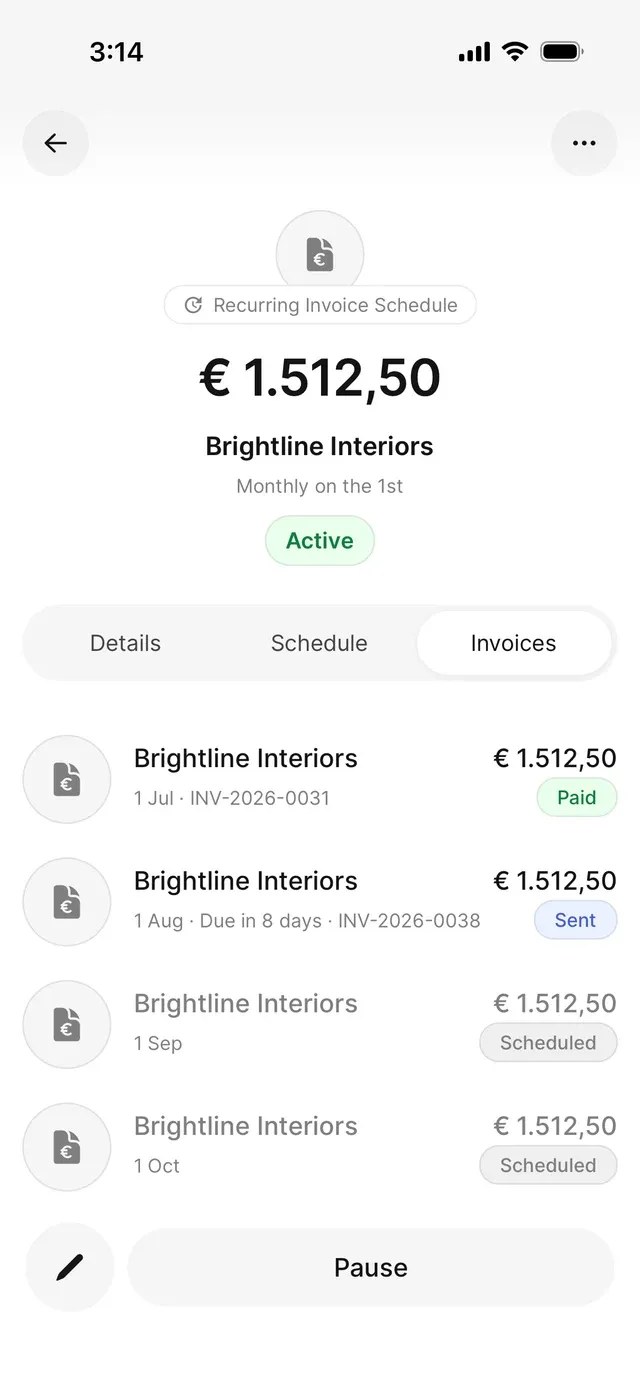
A schedule has three tabs:
- Details — the customer, your details, and the line items in the template.
- Schedule — the duration, frequency, next invoice date, and payment term.
- Invoices — history and future in one place. Invoices that were already created appear with their real status (Paid, Sent) and can be opened; upcoming runs are listed below them as muted rows marked Scheduled.
Schedule statuses
- Draft — saved but not active yet; nothing is being created.
- Active — the schedule is running and creates invoices on the planned dates.
- Paused — temporarily stopped. Nothing goes out; dates missed during the pause are skipped when you resume, not caught up.
- Cancelled — permanently stopped. The schedule stays visible for reference but can’t be reactivated.
- Completed — the end date has passed; the schedule is done.
The button at the bottom of the detail screen matches the status — activate, Pause, Resume, or duplicate — and ⋯ also offers editing and cancelling. Invoices that were already created always remain in your records, whatever happens to the schedule.
Common problems
No invoice is being created
You're missing an invoice from during a pause
That’s expected: dates that fell inside the pause are skipped. Create that invoice manually as a one-off if you need it.
You can't reactivate a cancelled schedule
Cancelling is final. Use Duplicate instead — you get a fresh draft with the same contents, counting from today.
Related articles
Can't find what you're looking for? Send us a message and we'll help you personally.
Contact support