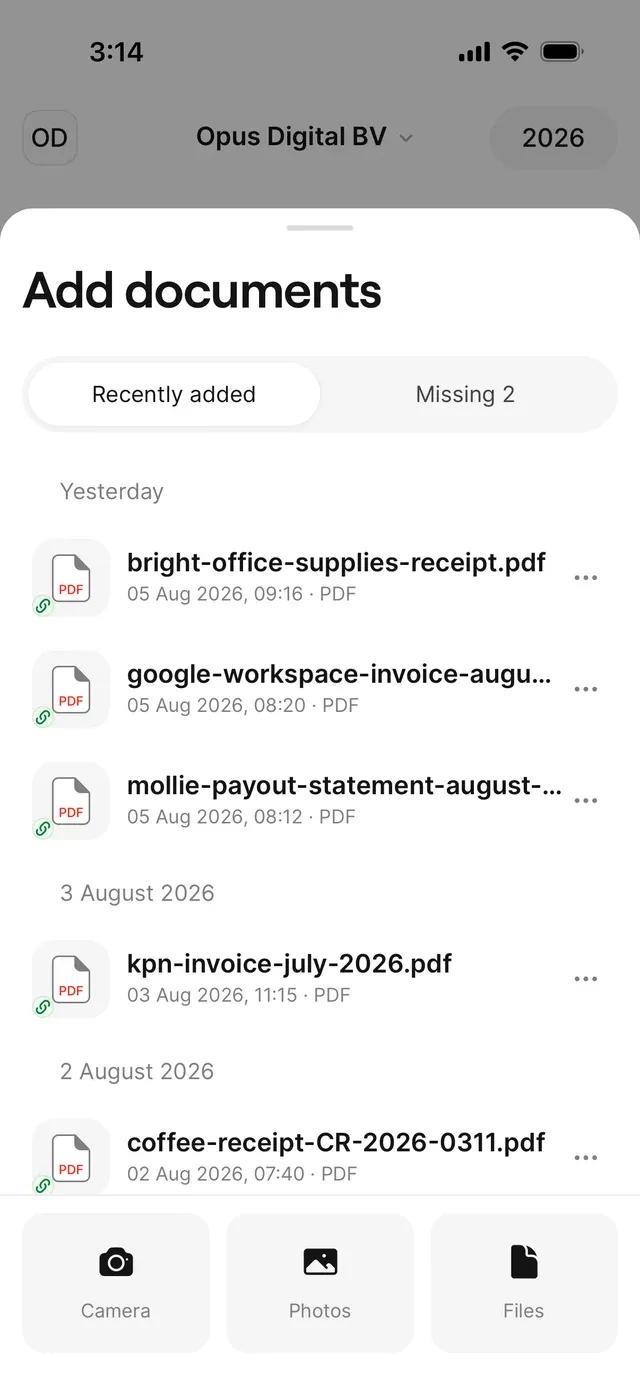
- Camera — photograph the receipt on the spot. Good light and a straight angle help.
- Photos — pick one or more photos from your library.
- Files — pick PDFs or images, for example an invoice you received by email.
No articles found
Try a different word, browse the topics, or contact support.
Search works on the published site. In development, browse the topics below.
Snap a photo of your receipt or upload a PDF. AirBill reads the document and automatically matches it to the right bank transaction.
Tap the black + in the middle of the bottom bar — it works on every screen — and pick how to add the document.
Each document appears under Recently added, first as Uploading…, then Processing document. Processing runs in the background, so you can carry on; the + button shows a counter meanwhile.
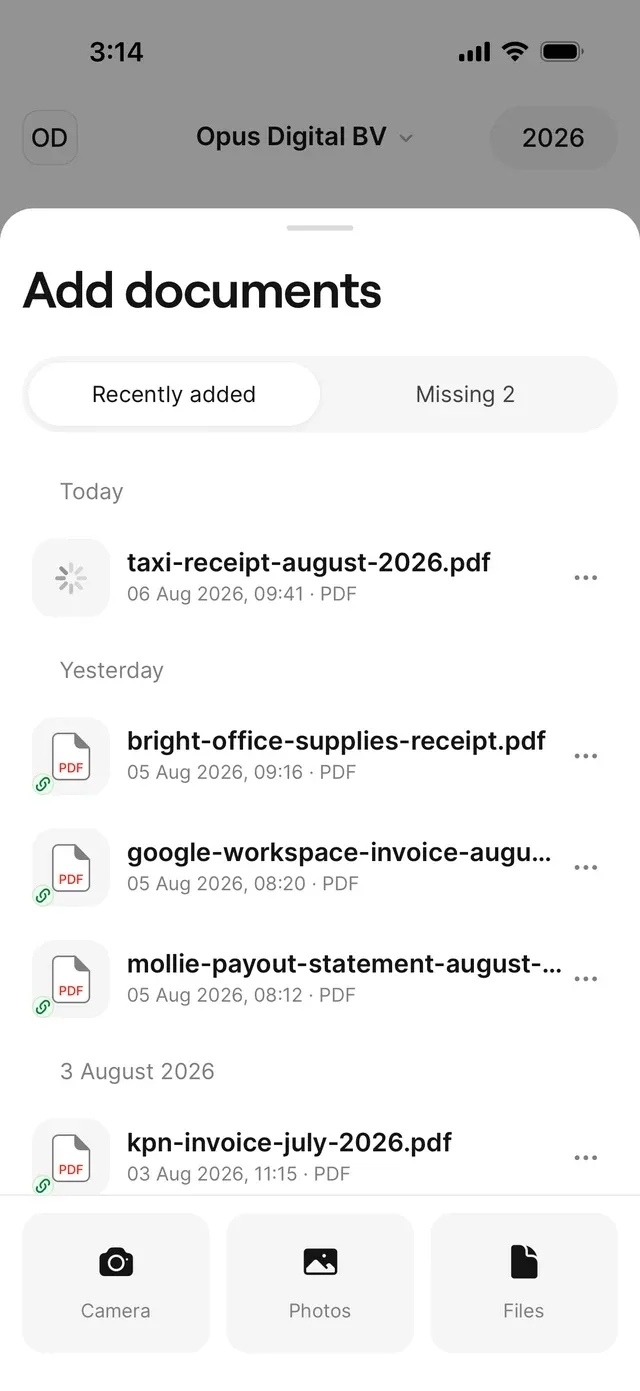
Supplier, date, amounts, and VAT are recognized automatically, and the document is filed as an expense or income in your Activity. Nothing to do on your side.
When AirBill finds the matching transaction — same amount, same period, same party — document and transaction are linked automatically and the entry is complete.
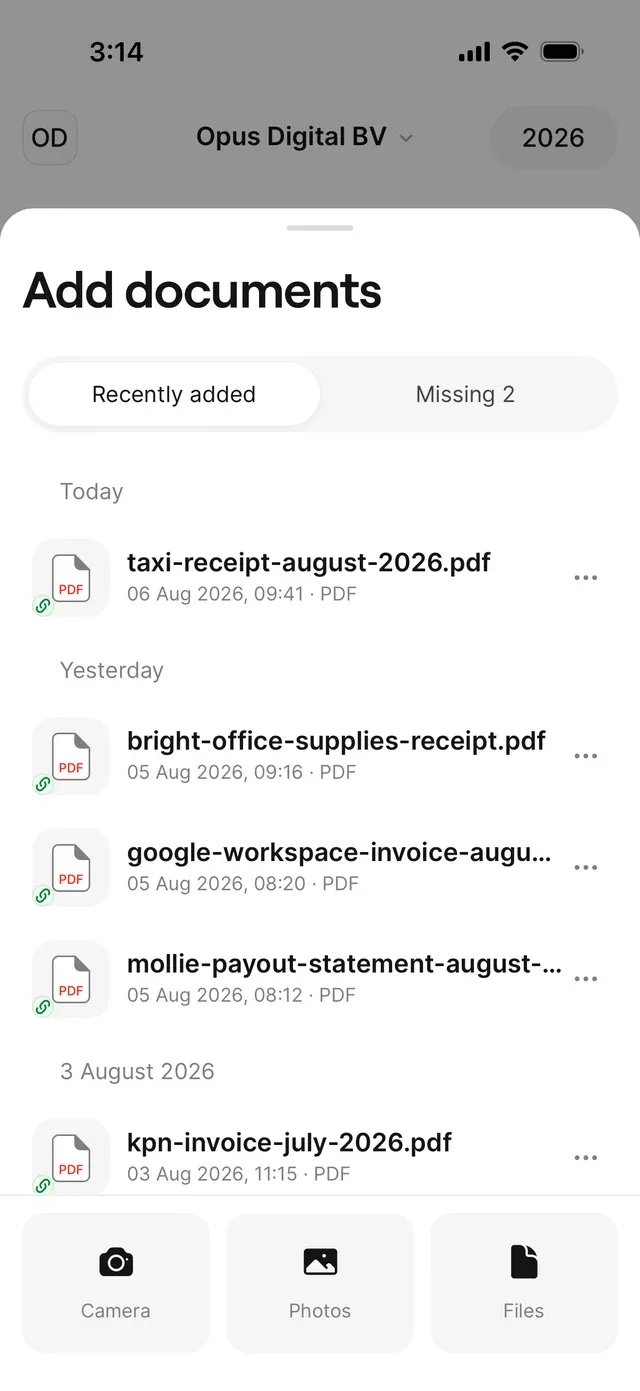
Automatic matching works from your bank transactions, so connect your bank first — otherwise the document waits for a transaction to appear.
Open it under Rejected to see why — see A document was rejected or failed.
Check that your bank is connected via Profile → Connections. If you paid privately or in cash there’s no transaction to match — resolve the entry without one instead.
Tap ⋯ next to the document and choose Retry, and check your internet connection.
Give AirBill access to your camera in your phone’s settings.
No problem: AirBill recognizes identical documents and keeps the receipt only once.
Can't find what you're looking for? Send us a message and we'll help you personally.
Contact supportAirBill AI assistant