Check whether App language is set to Use device language — if it is, AirBill is following your phone. Pick English or Nederlands directly instead.
Change the app language and appearance
Switch AirBill between English and Dutch, or follow your device — and choose a light, dark, or system-matched look.
Both settings sit under Profile, in the preferences section: App language and Appearance.
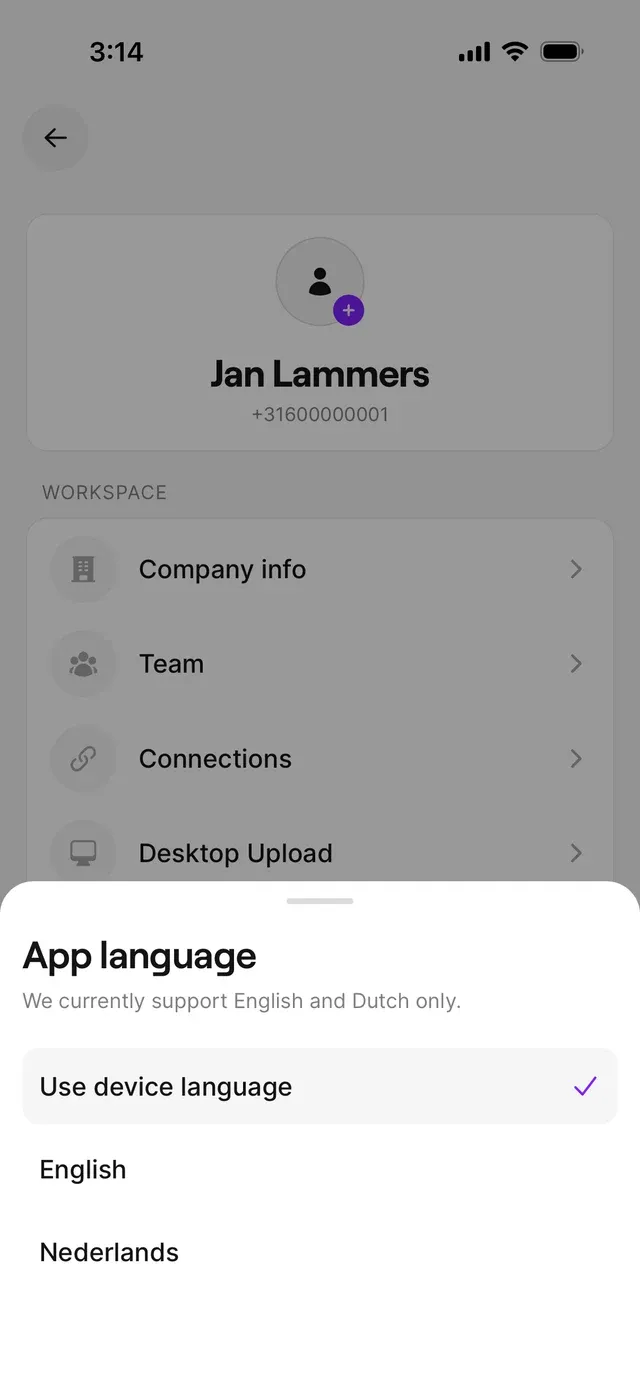
App language
Choose English, Nederlands, or Use device language, which follows whatever your phone is set to.
Use device language is also the out-of-the-box default: a phone set to Dutch starts AirBill in Dutch, any other phone language starts it in English. Pick English or Nederlands and your choice is pinned — later phone-language changes won’t touch it.
This changes AirBill’s own interface — menus, buttons, labels — and the language Bill answers in: new replies come back in the language AirBill is set to.
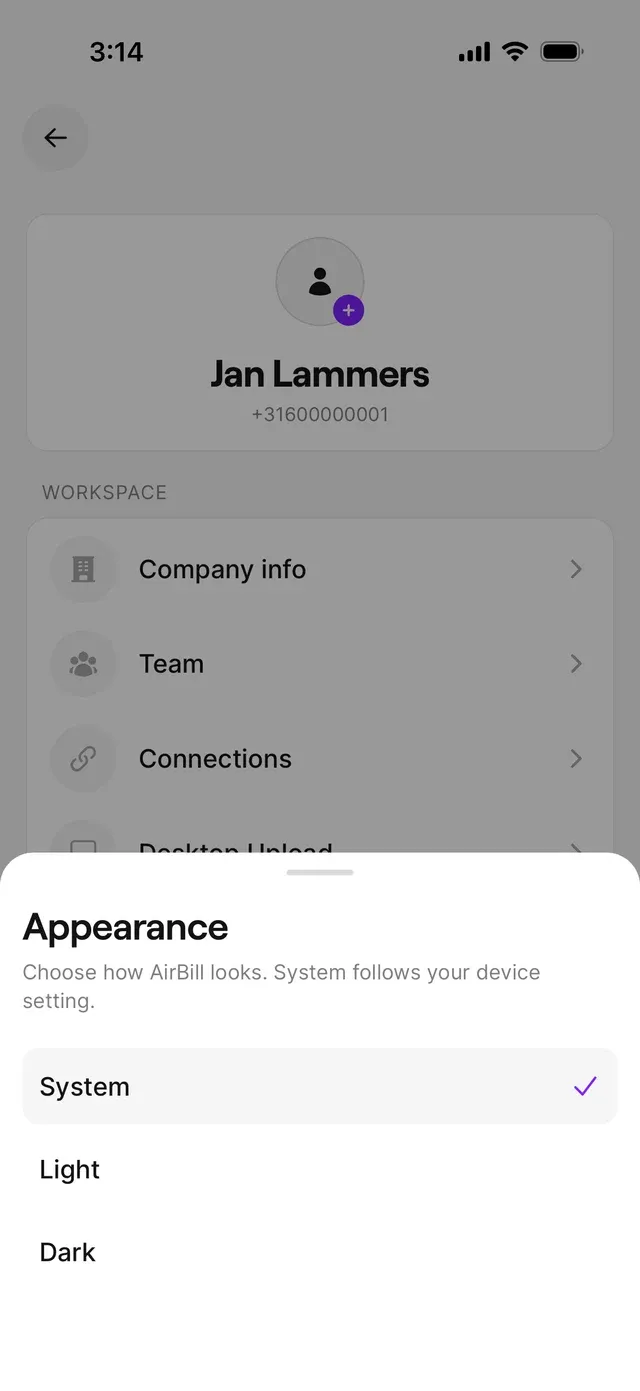
Appearance
System matches your phone, so it switches to dark in the evening if your phone does. Light and Dark stay put whatever your phone does.
Common problems
AirBill is in the wrong language
The app keeps switching between light and dark
That’s System doing its job. Choose Light or Dark to fix it.
Related articles
Can't find what you're looking for? Send us a message and we'll help you personally.
Contact support