No biometrics are enrolled on the phone, or they’ve stopped being recognised. Check Face ID or Touch ID in your device settings; AirBill uses whatever your phone provides.
Lock AirBill with Face ID or your passcode
Turn on App Lock so your bookkeeping is behind the same unlock you already use for your phone — Face ID, Touch ID, or your device passcode.
App Lock, in the preferences on your Profile, puts your administration behind your phone’s own unlock. It doesn’t create a separate AirBill code — it asks your device to confirm it’s you, using whatever you already have set up there. The line under the title says which method will be used, for example “Use Face ID to unlock”.
Flip the toggle to switch it on; AirBill asks you to authenticate first. Switching it off asks for authentication too, so someone holding your unlocked phone can’t quietly disable it.
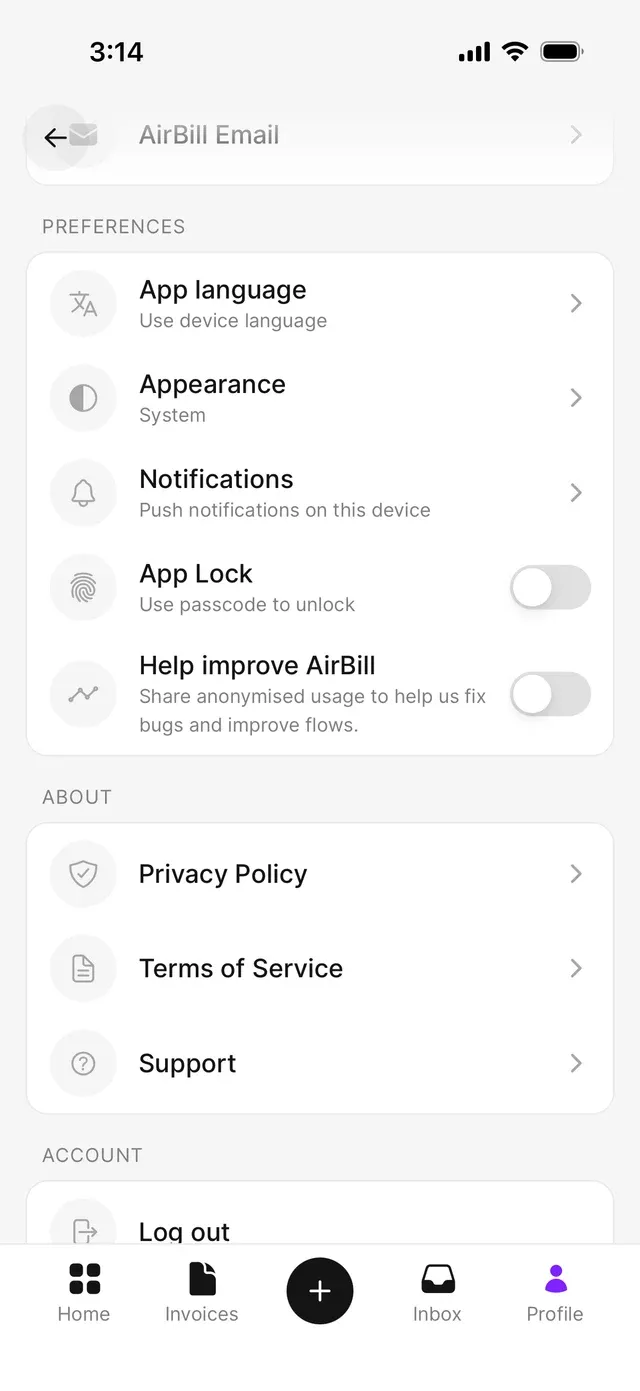
When AirBill asks you to unlock
With App Lock on, you unlock when you start the app while still signed in, and when you come back to AirBill after it has been in the background for a longer stretch — about half an hour. Switching to another app briefly and coming straight back doesn’t ask again.
Common problems
Face ID isn't offered, only the passcode
You're asked to unlock more often than you expected
A fresh launch always asks, on top of the return-from-background check.
You want to stop AirBill opening on this phone at all
App Lock protects the app on a phone you keep. If you’re handing the phone on, sign out instead — see Sign out of AirBill.
Related articles
Can't find what you're looking for? Send us a message and we'll help you personally.
Contact support